A Free Trading Journal for TopstepX
Export your trades from TopstepX and drop the file into SniperJournal, or connect your Topstep accounts through the ProjectX API. Every evaluation and funded account gets a journal with analytics, mistake tracking, Ghost Mode and AI insights. Free, no subscription, no trade limit.
- Trades, Orders, Fills and Performance exports are detected automatically
- Fees and commissions come inside the Trades export: nothing to type in
- API sync (beta) brings the last 90 days of every account under your TopstepX username and keeps them updated
- Keep each Combine or funded account in its own portfolio and compare them
Which TopstepX export should you import?
SniperJournal recognises these TopstepX (ProjectX) files on its own: you pick the file, not the format. Trades is the best starting point, and the API is there when you want it.
Trades (trades_export.csv)
RecommendedOne row per closed round-trip with entry and exit, realized P&L and the Fees and Commissions columns, both deducted. Timestamps carry their UTC offset, so there is nothing to adjust.
Performance (Performance.csv)
Also completeA summary block (account, P&L, commissions, win rate) followed by the trade table: each row is a closed trade with Trade P&L, Commission & Fees and Net P&L. SniperJournal takes the net figure and keeps the fees. Times come without a zone, so check them in the preview.
Orders (orders_export.csv)
Works, no P&L per rowThe order list with its status. Only filled orders count; cancelled and working ones are skipped, and the round-trips are rebuilt chronologically per contract with position accounting. No fees in the file.
Fills
Raw executionsThe API-style fills export: one execution per row and no realized P&L. Trades are rebuilt with FIFO position accounting per account and contract, and the commission of each fill is kept.
API sync via ProjectX
BetaConnect your TopstepX username and a ProjectX API key in Settings → Connections. SniperJournal brings the last 90 days of every account under that username into the portfolio you connect, then keeps them updated on its own; Sync Now runs the sync whenever you want. It needs ProjectX API access, a subscription billed by ProjectX, not by SniperJournal. The key cannot be read-only, so we only read trades and never place orders, and the first sync is checked against a CSV you already imported.
Live Funded accounts are not in the ProjectX API
The API does not expose Live Funded accounts, and TopstepX lists the Trades panel for Sim accounts only. For a Live Funded account, export the Orders panel every week (it covers the last 7 days): the trades are rebuilt from the filled orders, and fees can be added with Set fees.
Import your TopstepX trades in four steps
- 01
Export the Trades file from TopstepX
In TopstepX, open your trades, pick the date range and export the CSV (trades_export.csv). Do it per account if you run several Combines or funded accounts.
- 02
Drop the file into SniperJournal
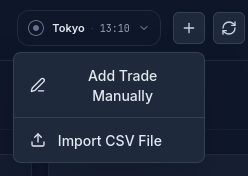
Open the portfolio you want the trades in, click Import and drop the file. CSV and XLSX files are accepted.
- 03
Check the preview before confirming
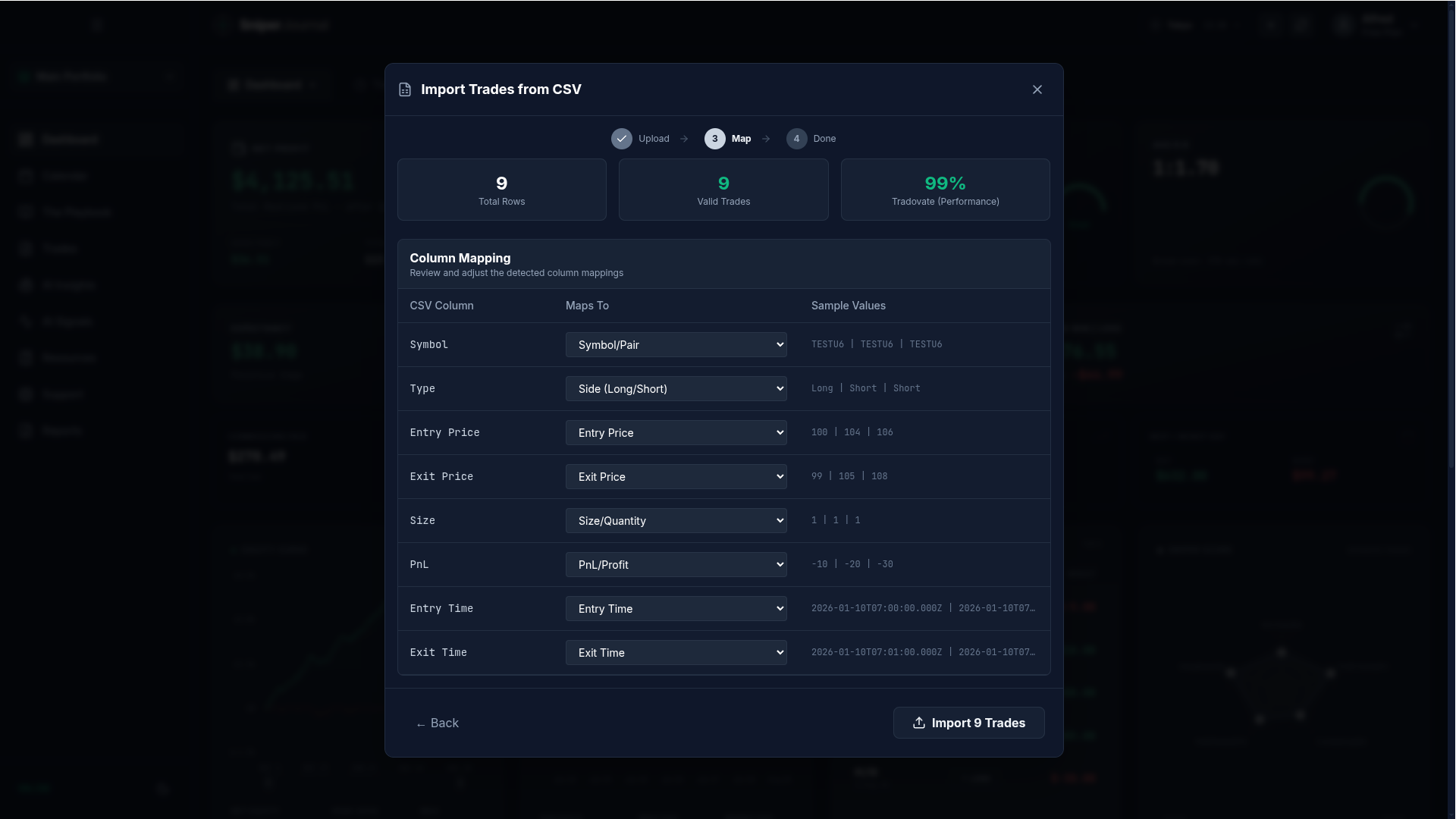
The importer names the detected format, for example ProjectX / TopstepX (Trades), with a confidence score and the number of valid trades. Fees are already in, so you just confirm.
- 04
Review your trades
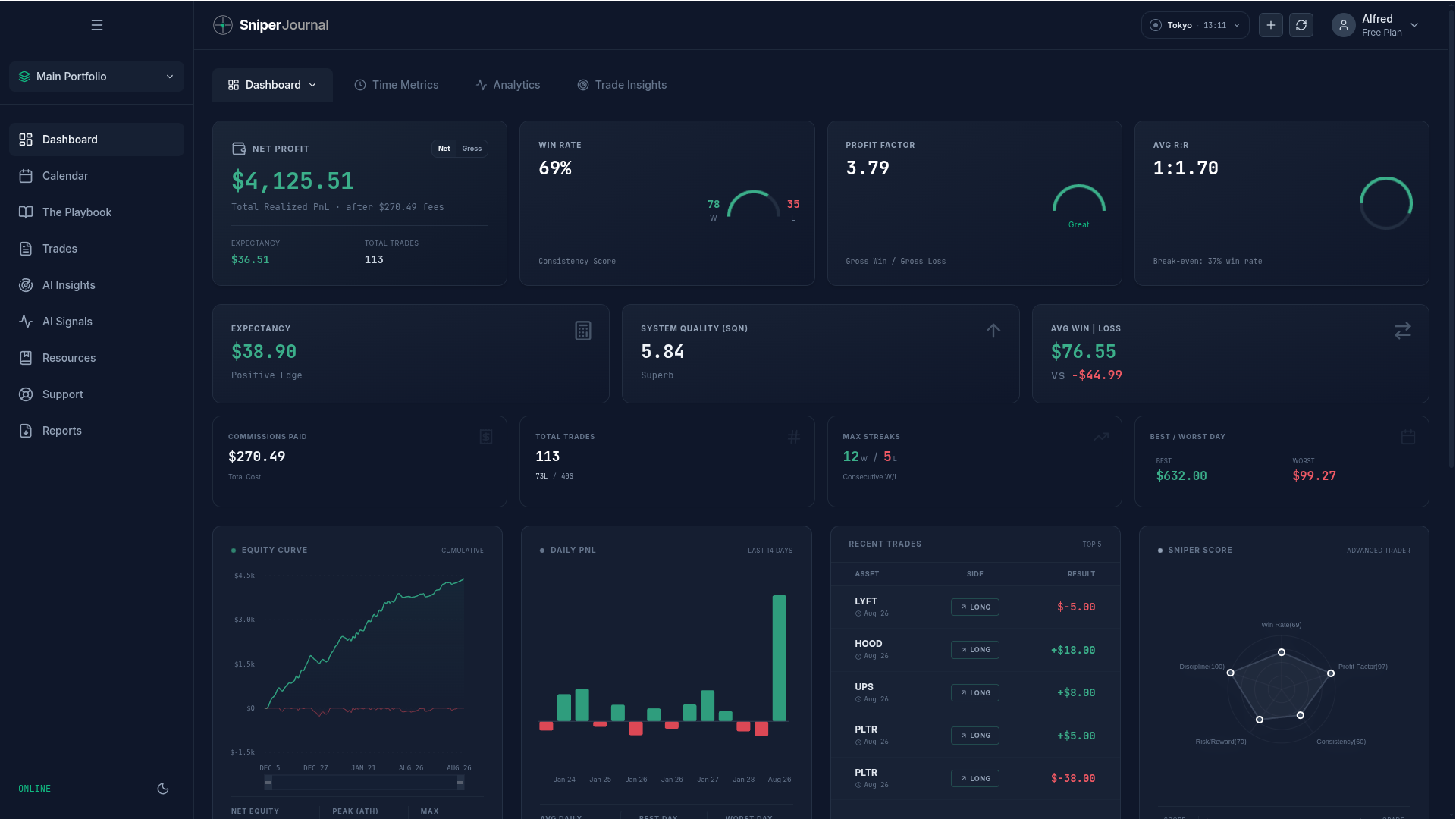
Your TopstepX trades land in the dashboard, the calendar and the journal. Tag mistakes, compare with Ghost Mode and let AI Insights look for patterns across your Combine.
Fees and commissions: already in the file
The Trades export carries a Fees and a Commissions column and both are deducted from each trade. Performance.csv brings Net P&L together with Commission & Fees, and Fills keep the commission of every execution. Only the Orders export has no fees at all.
For trades that arrived without fees, select them in the Journal and use Set fees: it applies a fee per contract, per side, to all of them at once.
How fees per contract work on imported futures tradesGood to know
One portfolio per account
Keep each Combine, Express Funded or Live Funded account in its own SniperJournal portfolio to compare them, or select several portfolios to see them together. Combines and Express Funded accounts export the Trades panel; Live Funded accounts export the Orders panel.
Times land right without a timezone setting
Trades, Orders and Fills carry an explicit UTC offset, so entries and exits land at the right instant for sessions and charts. Performance.csv has plain wall-clock times: check them in the preview before confirming.
Re-imports, duplicates and the API
Importing the same export again skips the trades you already have. If you connect the API after importing a CSV, the first sync is compared with those trades and nothing is saved if they do not match.
Watch the import on video
How to import futures trades from Tradovate, TopstepX and NinjaTrader (2:23). The TopstepX part starts at 0:37.
What you get after the import
- Dashboard with win rate, profit factor, expectancy, drawdown and 30+ metrics
- Calendar heatmap and daily P&L, plus performance by hour and day of week
- Mistake analytics: tag errors and see what each type costs you
- Ghost Mode: your results with the flagged mistakes removed
- AI insights and the AI analyst over your own trades
- PDF reports and a journal with notes and screenshots
FAQ
Does SniperJournal sync with TopstepX automatically?
Yes, in beta, through the official ProjectX API: connect your TopstepX username and API key and SniperJournal brings the last 90 days of your accounts, then keeps them updated on its own. It needs ProjectX API access, a subscription billed by ProjectX rather than by SniperJournal, and it does not cover Live Funded accounts. The file export is the recommended first step and takes under a minute.
Is SniperJournal free for Topstep traders?
Yes. SniperJournal is free. There is no subscription, one-time fee, trial gate or trade limit, and registration is open. The only cost around the API is the ProjectX subscription itself, if you choose that route.
Which TopstepX export is best?
Trades. Each row is a closed trade with its P&L and fees, and the timestamps carry their offset. Performance.csv is complete too; Orders and Fills work but have to be rebuilt into trades.
Does it work for the Trading Combine and funded accounts?
Yes. Trading Combine and Express Funded accounts export the Trades panel, which imports with fees included. TopstepX lists that panel for Sim accounts only, so for a Live Funded account export the Orders panel every week; the API does not cover Live Funded accounts either.
Is the ProjectX API key safe to share?
ProjectX keys cannot be made read-only, so SniperJournal limits itself: it only reads your trades and never places orders or touches the account. The key is encrypted on our servers, never shown again, and you can revoke it in your ProjectX dashboard whenever you want.
I trade my Topstep account on NinjaTrader or Quantower. Does that import too?
Yes. The NinjaTrader Trade Performance and Executions grids and the Quantower reports are detected automatically, and so are Tradovate exports. Drop the file and the importer names the format.
Keep reading
- How to export your TopstepX trades and import them into a journal
- How to import your trades: Tradovate, Topstep, NinjaTrader, MetaTrader and 30+ brokers
- Tradovate trading journal: which export to import and how fees work
- How to add fees to imported futures trades
- All supported brokers, exchanges and platforms
- Every SniperJournal feature
Start journaling your TopstepX trades
Trades export with fees included. API sync in beta. Free.
Start free