A Free Trading Journal for thinkorswim
Export your activity from thinkorswim or Schwab, drop the file into SniperJournal and review your stocks, options and futures trades with a dashboard, calendar, mistake analytics, Ghost Mode and AI insights. Free, no API key, no subscription, no trade limit.
- Account Statement, Trade Activity and Orders exports are detected automatically
- Options come in with strike, expiry and type, as readable OCC symbols
- Schwab and TD Ameritrade transaction exports import the same way
Which thinkorswim export should you import?
SniperJournal recognises these thinkorswim and Schwab files on its own: you pick the file, not the format. The Account Statement is the most complete.
Account Statement
RecommendedThe multi-section CSV from Monitor → Account Statement: SniperJournal reads the trade rows across the stock, futures and forex sections, including Misc Fees and Commissions & Fees, and rebuilds each trade from the buys and sells.
Trade Activity
Stocks and optionsThe Activity tab export with its Filled Orders section: side, quantity, position effect, symbol, expiry, strike and type. Options become readable OCC symbols. This file carries no fees.
Orders report
Works, no P&L per rowThe Orders grid exported from the desktop or web platform (orderReport CSV or XLSX). Only filled orders count; the round-trips are rebuilt with position accounting and the times are read in Eastern time, as the report writes them.
Schwab and TD Ameritrade exports
Also detectedSchwab Orders, Transactions and Activities exports and the TD Ameritrade transaction history are recognised too, so an older account history imports alongside your thinkorswim files.
No API connection: the export is the way in
SniperJournal does not connect to Schwab accounts through an API. Exporting a statement takes under a minute and re-imports skip the trades you already have.
Import your thinkorswim trades in four steps
- 01
Export the Account Statement
In thinkorswim open Monitor → Account Statement, set the date range and export it to CSV. The Activity tab and the Orders grid export the same way if you prefer those.
- 02
Drop the file into SniperJournal
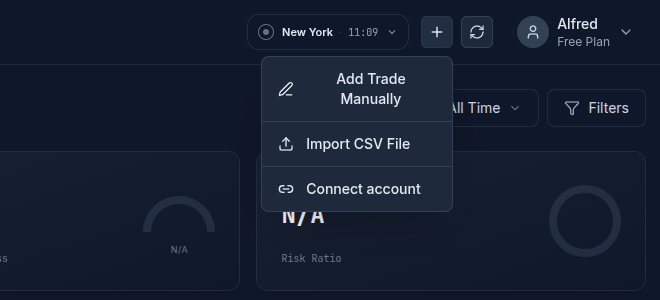
Open the portfolio you want the trades in, click Import and drop the file. CSV and XLSX files are accepted.
- 03
Check the preview before confirming
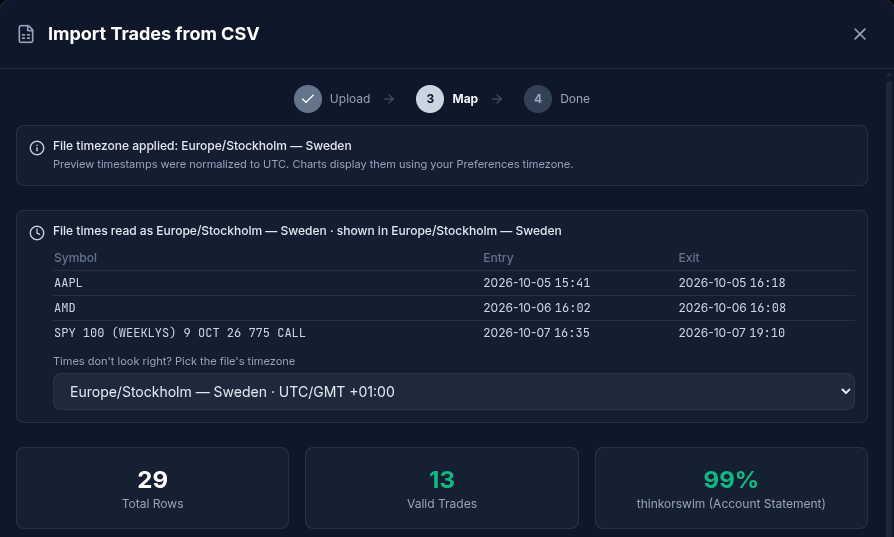
The importer names the detected format, for example thinkorswim (Account Statement), with a confidence score and the number of valid trades. If the times look shifted, pick the file timezone (Eastern) before confirming.
- 04
Review your trades
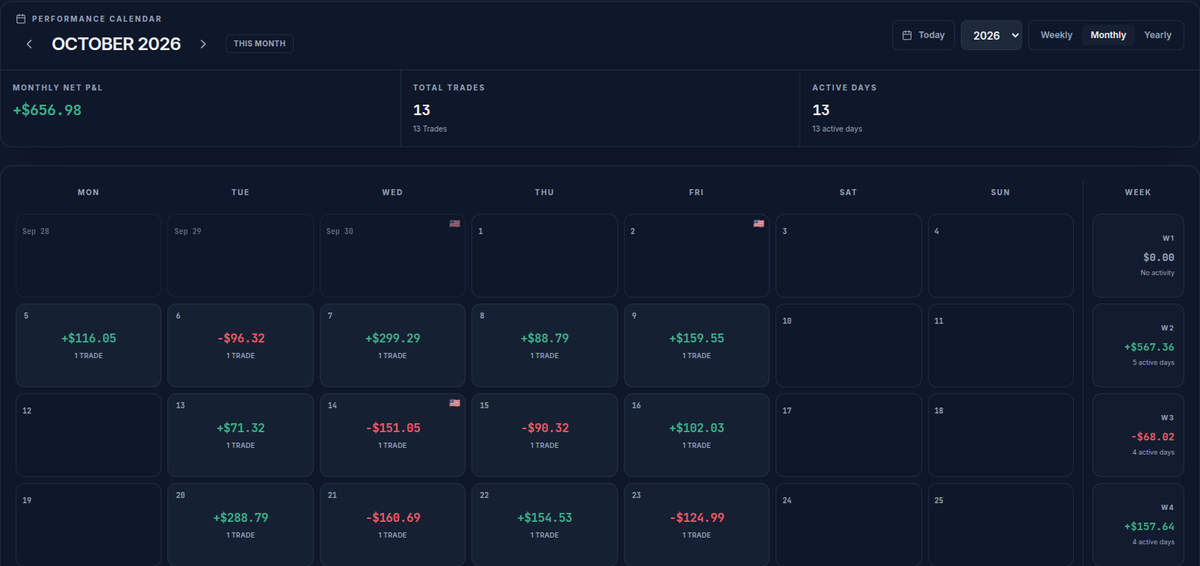
Your thinkorswim trades land in the dashboard, the calendar and the journal. Tag mistakes, compare with Ghost Mode and let AI Insights look for patterns.
Fees: use the Account Statement
The Account Statement carries Misc Fees and Commissions & Fees per transaction, and both are deducted from each trade. The Trade Activity and Orders exports have no fees, so trades imported from them show gross P&L.
For trades that arrived without fees, select them in the Journal and use Set fees to apply a fee per contract, per side, to all of them at once.
Good to know
Options and futures
Options arrive with strike, expiry and type and are shown as readable OCC symbols. Futures and forex sections of the Account Statement import too, each trade in its own instrument.
Times are Eastern
thinkorswim reports write wall-clock times in US Eastern time. The Orders report is read that way automatically; for the Account Statement, pick the file timezone in the import modal if the times look shifted.
Re-imports and several accounts
Importing the same export again skips the trades you already have. Keep each account in its own SniperJournal portfolio to compare them, or select several portfolios to see them together.
Watch the import on video
How to import stock and options trades from thinkorswim and Interactive Brokers (2:30). The thinkorswim part starts at 0:23.
What you get after the import
- Dashboard with win rate, profit factor, expectancy, drawdown and 30+ metrics
- Calendar heatmap and daily P&L, plus performance by hour and day of week
- Mistake analytics: tag errors and see what each type costs you
- Ghost Mode: your results with the flagged mistakes removed
- AI insights and the AI analyst over your own trades
- PDF reports and a journal with notes and screenshots
FAQ
Is SniperJournal free for thinkorswim traders?
Yes. SniperJournal is free. There is no subscription, one-time fee, trial gate or trade limit, and registration is open.
Which thinkorswim export is best?
The Account Statement: it covers stocks, futures and forex and carries the fees. Use Trade Activity for a quick stock and options import, and the Orders report when that is what you have.
Does it handle options?
Yes. Options come in with strike, expiry and type and are shown as readable OCC symbols, with the P&L computed from the buys and sells of each contract.
Does SniperJournal connect to Schwab through an API?
Not today. You import the export file, which takes under a minute, and re-imports skip what you already have.
My history is in TD Ameritrade exports. Do they still work?
Yes. TD Ameritrade transaction exports and the Schwab Orders, Transactions and Activities exports are detected automatically and import alongside your thinkorswim files.
Why are my times a few hours off?
Because the statement writes Eastern wall-clock times without a timezone. Pick the file timezone in the import modal and the times line up with your sessions and charts.
Keep reading
Start journaling your thinkorswim trades
Stocks, options and futures from one statement. Free.
Start free