A Free Trading Journal for Tradovate
Export your trades from Tradovate, drop the file into SniperJournal and review your futures trading with a dashboard, calendar, mistake analytics, Ghost Mode and AI insights. No API key, no subscription, no trade limit.
- Performance, Position History, Fills and Orders exports are detected automatically
- Add exchange and clearing fees per contract when the export leaves them out
- Works for prop-firm evaluation and funded accounts that run on Tradovate
Which Tradovate export should you import?
SniperJournal recognises these Tradovate reports on its own: you pick the file, not the format. Performance is the best starting point for most traders.
Performance
RecommendedOne row per closed buy/sell pair with the realized P/L Tradovate reports. The trade direction comes from which execution happened first. Commissions are not in the file.
Position History
Also recommendedEach row is a matched quantity (Pair ID) with its realized P/L; a repeated Position ID groups one flat-to-flat cycle. No reconstruction needed. Commissions are not in the file.
Fills
If you want commissionsIndividual executions (Fill P, Qty, Type). SniperJournal rebuilds the round-trips in order per contract and computes P&L from the contract point value. The Fee column (broker commission per fill) is imported; exchange, clearing and NFA fees are not in the file.
Orders
Works, no P/L per rowThe Orders grid (Side, Qty, Avg Fill Price, Status, Update Time). Only filled orders count as executions; cancelled and working orders are skipped. Round-trips are rebuilt as with Fills.
Order History
Rithmic and copy-trading exportsThe orders_history.csv that some prop-firm and copy-trading setups produce (fillPrice, fillSize, status). Filled orders only, rebuilt into trades.
Notifications Log
Last resortThe platform notification log (Symbol, Time, Title, Text). Executed events become fills and are rebuilt into trades; placed, cancelled and rejected events are ignored. Prefer one of the reports above when you can.
Not importable: Account Summary
That report holds aggregate metrics (Total P/L, Net Liq, margins), not trades. If you upload it, the importer explains why it cannot rebuild trades from it instead of importing wrong numbers.
Import your Tradovate trades in four steps
- 01
Export the report from Tradovate
Open the Reports module in Tradovate, choose Performance (or Position History or Fills), set the date range and download the CSV. Every account that runs on Tradovate exports the same reports, including evaluation and funded prop-firm accounts.
- 02
Drop the file into SniperJournal
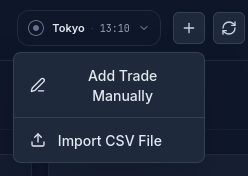
Open the SniperJournal account you want the trades in, click Import and drop the file. CSV, XLSX and HTML files are accepted.
- 03
Check the preview before confirming
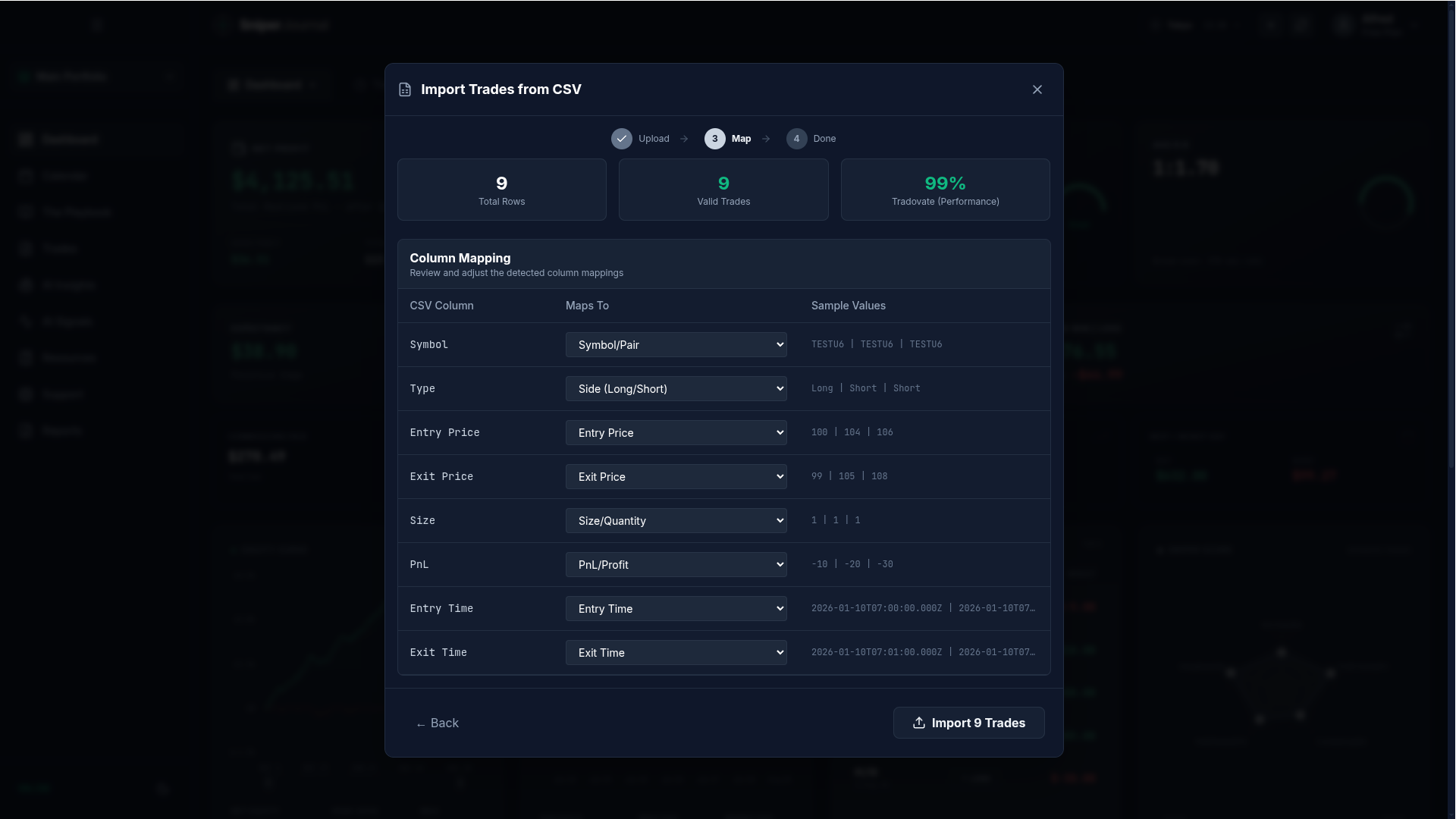
The importer names the detected format, for example Tradovate (Performance), with a confidence score and the number of valid trades. Pick the file timezone if the times look shifted, add a fee per contract if the file has none, then confirm.
- 04
Review your trades
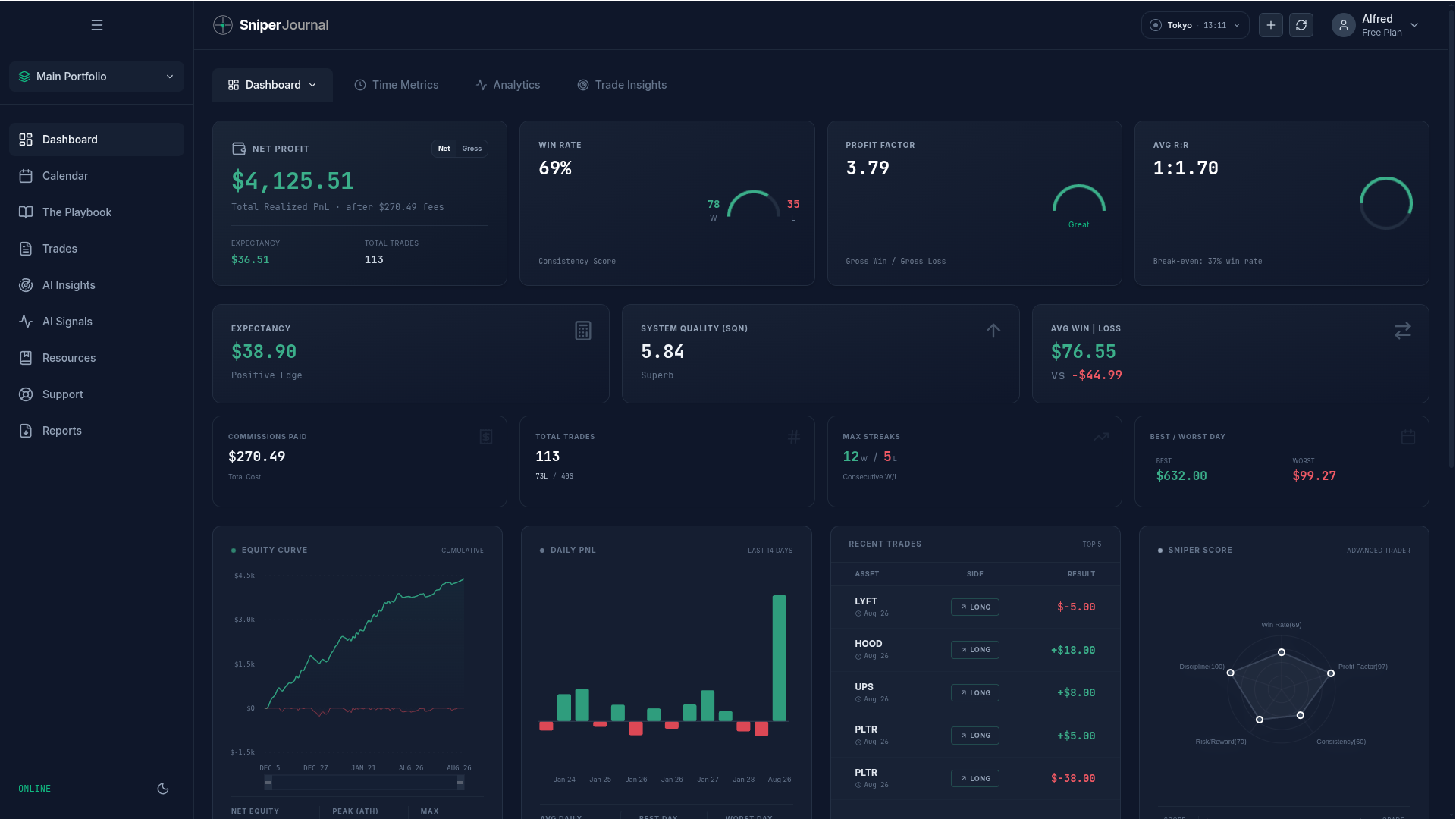
Your Tradovate trades land in the dashboard, the calendar and the journal. Tag mistakes, compare with Ghost Mode and let AI Insights look for patterns in your sessions.
Fees: what Tradovate exports leave out
Performance and Position History carry the realized P/L without commissions, and Fills carries the broker commission per fill but not exchange, clearing or NFA fees. Imported as is, your net results would look better than your statement.
SniperJournal asks for one number when it matters: a fee per contract, per side. Type it in the import modal and each trade gets rate × contracts × 2 sides; the rate is saved on the account for the next import. For trades you already imported, select them in the Journal and use Set fees.
Read the full guide to fees on imported futures trades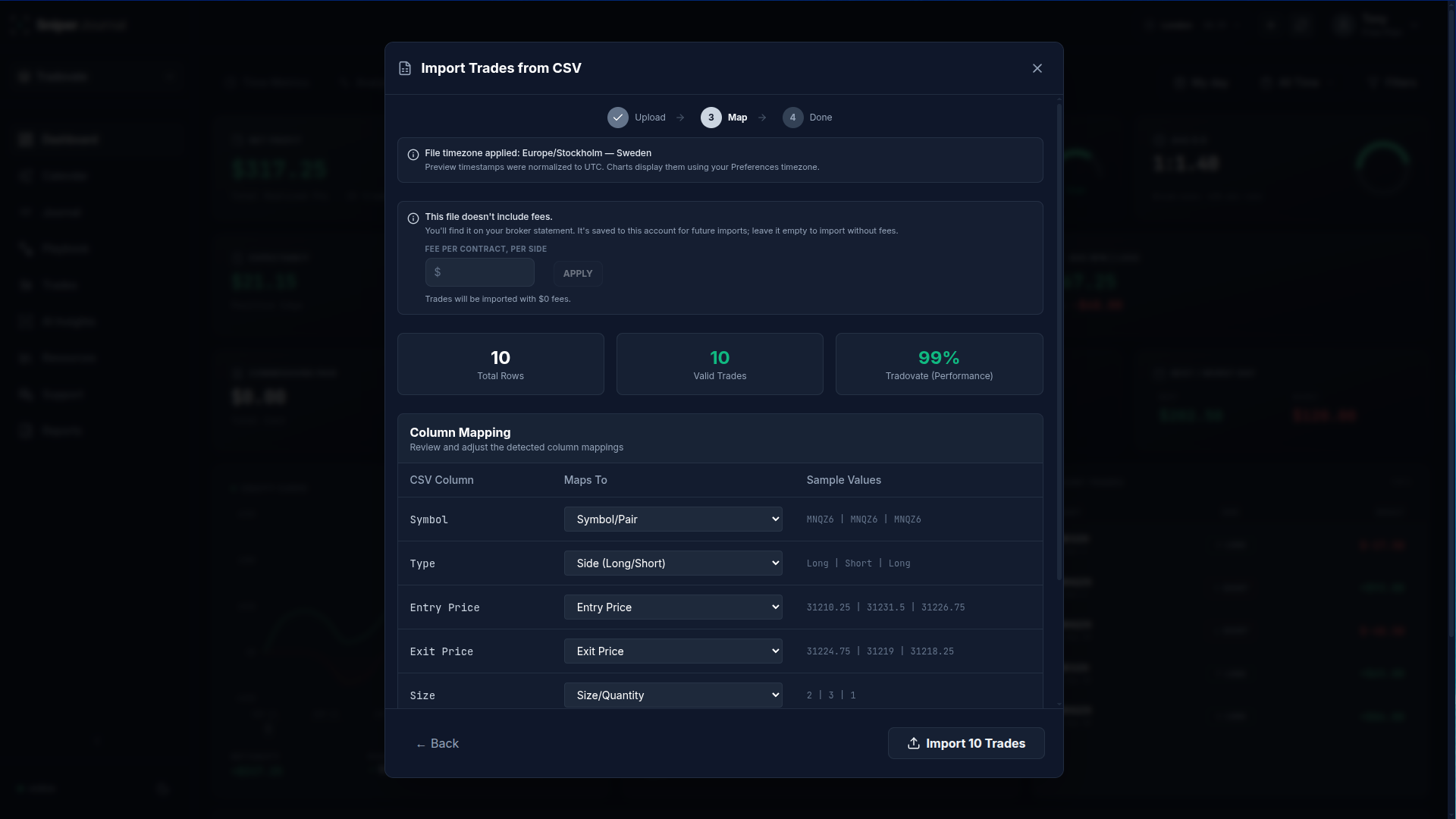
Good to know
Times have no timezone in the file
Tradovate writes wall-clock times without an offset, in the timezone your platform runs in. If entries and exits look shifted in the preview, pick the file timezone in the import modal before confirming, and your trades land at the right moment for sessions and charts.
Prop-firm accounts on Tradovate
Evaluation and funded accounts that run on Tradovate export the same reports, so they import the same way. Keep each account in its own SniperJournal portfolio to compare them, or select several portfolios to see them together.
Re-imports and duplicates
Importing the same export again skips the trades you already have, so you can export a fresh Performance report whenever you like. If you re-import after changing the file timezone, delete the earlier trades first: with new times they look like different trades.
Watch the import on video
How to import futures trades from Tradovate, TopstepX and NinjaTrader (2:23). The Tradovate part starts at 0:18.
What you get after the import
- Dashboard with win rate, profit factor, expectancy, drawdown and 30+ metrics
- Calendar heatmap and daily P&L, plus performance by hour and day of week
- Mistake analytics: tag errors and see what each type costs you
- Ghost Mode: your results with the flagged mistakes removed
- AI insights and the AI analyst over your own trades
- PDF reports and a journal with notes and screenshots
FAQ
Does SniperJournal connect to Tradovate through its API?
Not today. Tradovate issues third-party API access only to approved vendors, so SniperJournal imports the report file instead. Exporting and importing takes under a minute, and re-imports skip what you already have.
Is SniperJournal free for Tradovate traders?
Yes. SniperJournal is free. There is no subscription, one-time fee, trial gate or trade limit, and registration is open.
Which Tradovate export is best?
Performance. Each row is a closed trade with the P/L Tradovate itself reports, so nothing has to be reconstructed. Position History works the same way. Use Fills if you want the broker commission per fill in your P&L.
Does it handle micro contracts like MES and MNQ?
Yes. Performance and Position History bring the P/L from Tradovate as is. For Fills and Orders, P&L is computed from the contract point value for the common CME, NYMEX, COMEX and CBOT contracts (ES, MES, NQ, MNQ, YM, MYM, RTY, M2K, CL, MCL, GC, MGC, SI, ZB, ZN, ZC and more). Contracts outside that list import with a multiplier of 1 and a warning so you can check them.
Why are my entry and exit times a few hours off?
Because the export has no timezone: Tradovate writes the wall-clock time of your platform. Pick the file timezone in the import modal and the times line up with your sessions and charts.
Can I import TopstepX or NinjaTrader files the same way?
Yes. TopstepX (ProjectX) Trades, Orders and Fills exports and the NinjaTrader Trade Performance and Executions grids are detected automatically too. The import guide covers each one.