A Free Trading Journal for MetaTrader 4 and 5
Connect MetaTrader 5 with SniperJournal's own read-only agent and every position you close lands in your journal by itself. On MetaTrader 4, a one-shot script sends your history whenever you run it. Or import the account History report as a file. Free, with no broker API and no password.
- MT5: the agent forwards each closed position automatically while the terminal is open
- MT4: run the backfill script whenever you want the journal updated; re-runs skip what is already in
- File import: MT4/MT5 History reports, Deals History and closed-trades CSVs are detected automatically
- Works with virtually any broker's desktop terminal, including prop-firm accounts on MetaTrader
Three ways to get your MetaTrader trades in
Pick the one that fits how you trade. All three are free and read-only, and all three skip trades you already have.
MetaTrader 5 agent (auto-sync)
Recommended for MT5An Expert Advisor (SniperJournalAgent) that reads the closed positions in your terminal's local history and forwards each new close as it happens. It sends the full history once on its first run, keeps a local queue if the server is unreachable and retries by itself. Read-only: it never places or modifies orders and never sees your broker password.
MetaTrader 4 script (backfill)
For MT4A one-shot script, SniperJournalBackfill.ex4, that sends the closed orders shown in the Account History tab. Drag it onto a chart, paste your token and it runs once. MT4 cannot run it in the background, so you re-run it whenever you want the journal updated; trades already in the journal are skipped.
File import (MT4 and MT5)
No installExport from the terminal and drop the file: the MT4 Account History report (Save as Report), the MT5 Trade History Report (HTML, XLSX or CSV), Deals History CSVs, closed-trades CSVs from brokers or EAs (English, Spanish and German headers), the MT5 mobile app Journal and the web terminal Trade Report are all detected automatically.
Not supported: the web terminal and the mobile app cannot run the agent
Scripts and Expert Advisors only run in the desktop terminal (Windows, or macOS and Linux through Wine). From the web terminal or the mobile app, export the report or the Journal and import it as a file.
Connect MetaTrader 5 in four steps
- 01
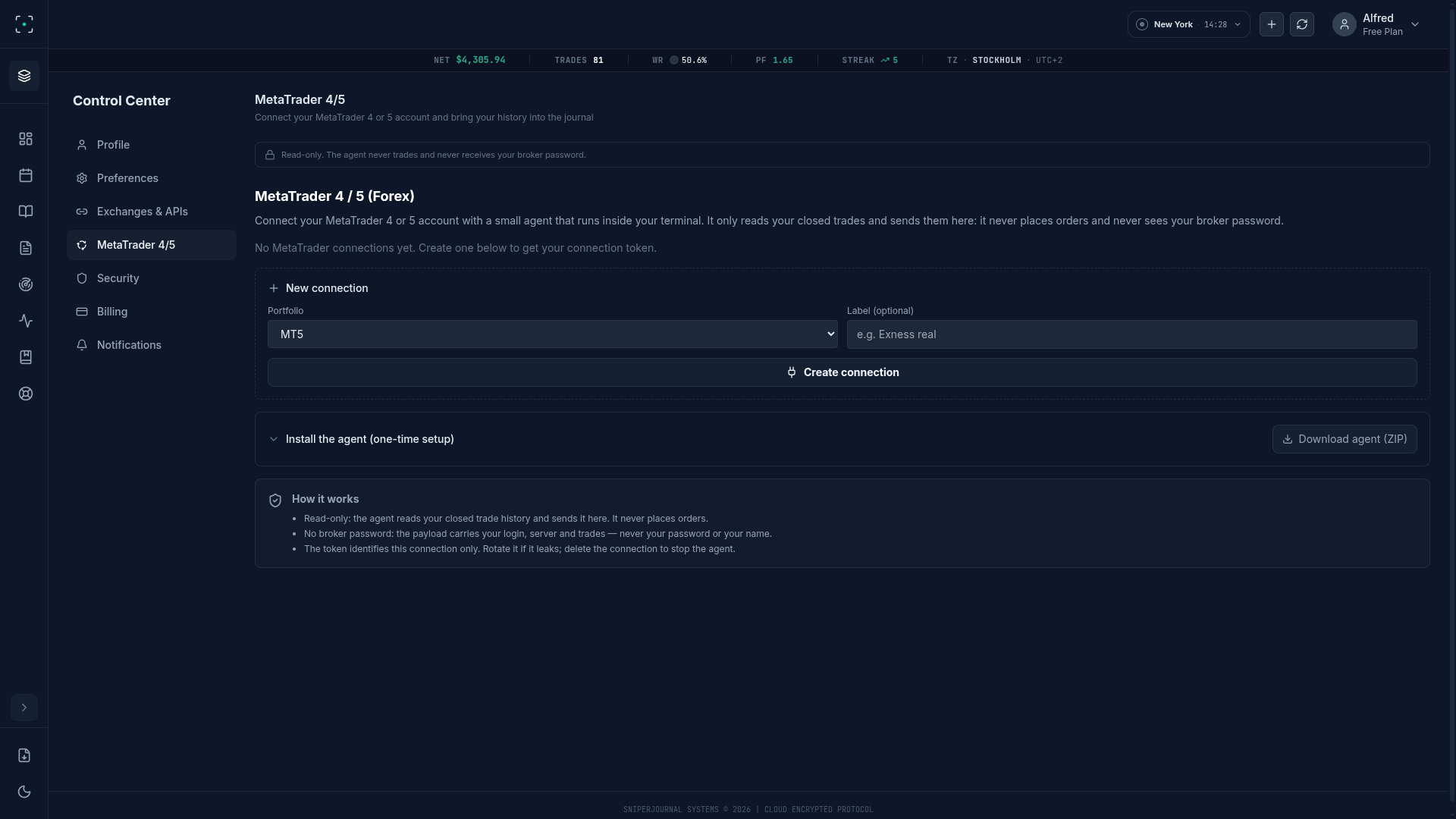
Create the connection in SniperJournal
Open Settings → Connections, choose MetaTrader and pick the portfolio your trades will land in. It must be in the same currency as your MT5 account. Then download your agent: each connection gets its own, with nothing to copy or paste.
- 02
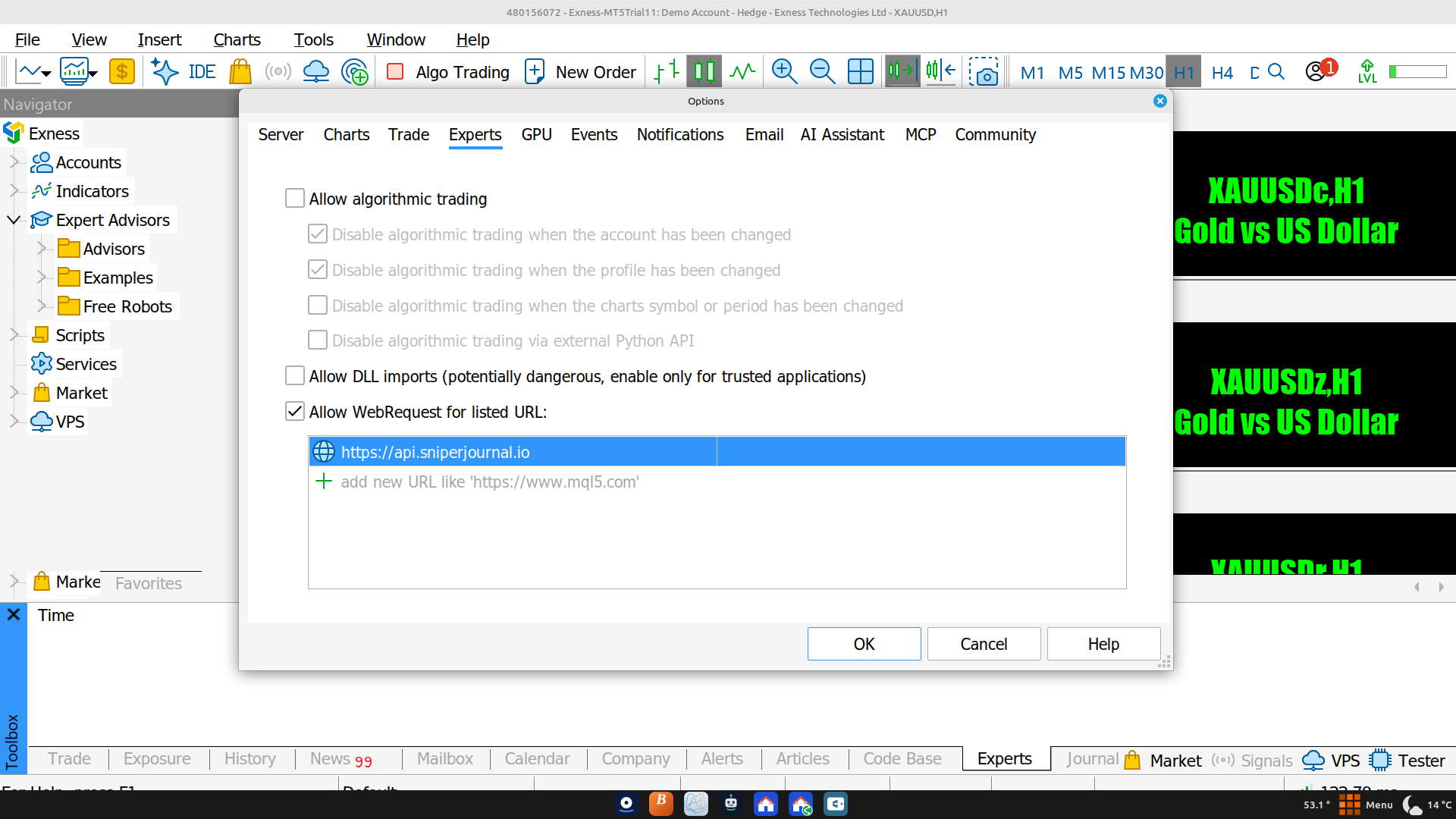
Install the agent in MetaTrader 5
Copy the agent file you downloaded (SniperJournalAgent-….ex5) into MQL5 → Experts and refresh the Navigator. In Tools → Options → Expert Advisors, tick Allow WebRequest and add the SniperJournal URL shown in the panel.
- 03
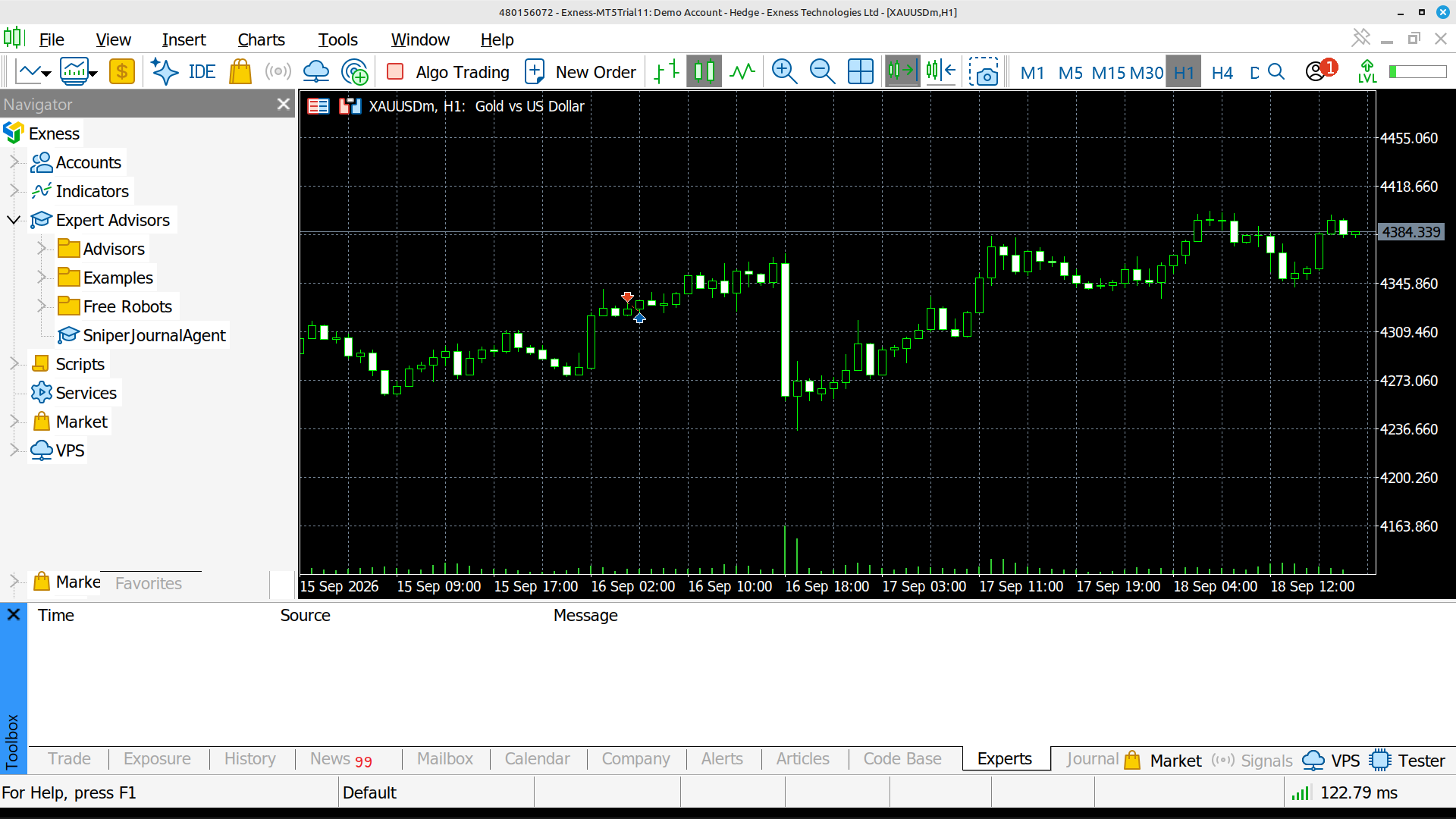
Attach it to any chart
Drag the agent onto any chart of the account and click OK: there is nothing to fill in. Each chart holds one agent, so a second account goes on another chart. Allow Algo Trading is not needed: the agent never trades.
- 04
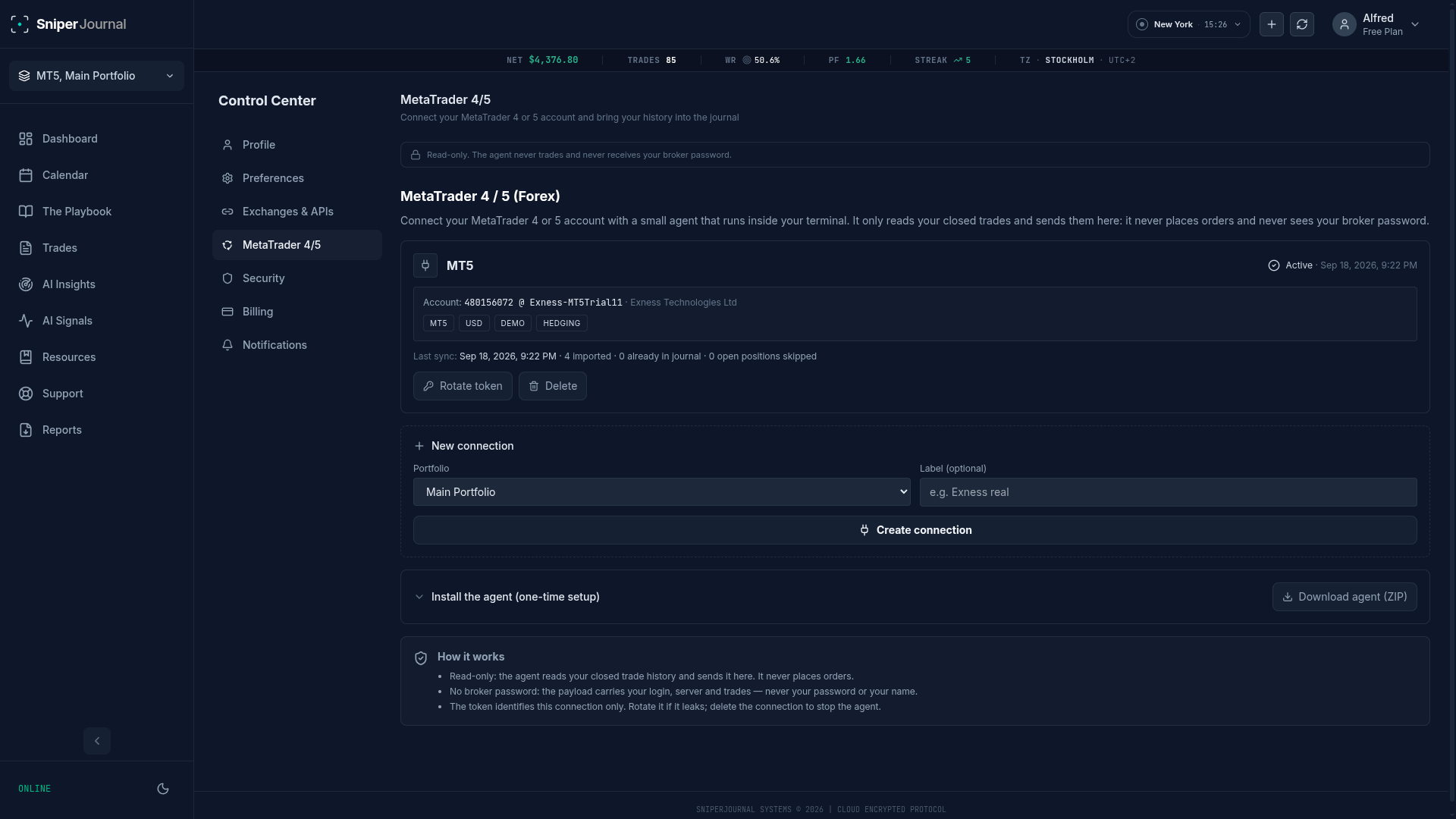
Confirm it is syncing
The agent draws a status panel on the chart: Backend OK and backfill OK mean your history is in. In SniperJournal the connection switches to Connected, and the MetaTrader card under Settings → Connections shows Active with the last heartbeat and the trades imported.
Fees, commission and swap, as MetaTrader reports them
Commission, swap and any broker fee arrive with each trade, whether it comes from the agent, the script or a file. SniperJournal counts fees as commission plus fees plus taxes minus swap: a positive swap is a credit that lowers your costs and a negative swap adds to them, so your net result follows your MetaTrader report.
There is nothing to type in. Unlike futures exports that leave fees out, MetaTrader already includes them, and when a broker pays interest on a position the fee can even be negative.
Good to know
Same currency, or cent accounts as USC
Create the portfolio in the currency of your MetaTrader account: USD, EUR, GBP, JPY, AUD, CAD, CHF, NZD, SEK, ZAR or INR. Exness cent accounts are USC. If the currencies differ, the connection card tells you instead of mixing them, and an empty portfolio simply adopts the account's currency.
Times follow your broker's server clock
The MT5 agent sends the server's GMT offset with every trade, so entries and exits land at the right instant. The MT4 script reads the offset from live quotes, so run it while the market is open or set the offset by hand. File imports show the times in the preview, assuming the usual Europe/Athens server clock, and let you change the zone before confirming.
Keep the terminal open, or use a VPS
MT5 forwards trades only while the terminal runs; close it and the card goes stale, and the agent catches up when you reopen it. A Windows VPS keeps it syncing around the clock. The Sync Now and Sync All buttons are for API exchanges: MetaTrader updates come from the agent, or from re-running the MT4 script. On hedging accounts, close part of a position from Toolbox → Trade → Close Position → Volume.
Watch the setup on video
MetaTrader 5: connection, agent install and first sync.
MetaTrader 4: the backfill script step by step.
What you get after the sync
- Dashboard with win rate, profit factor, expectancy, drawdown and 30+ metrics
- Calendar heatmap and daily P&L, plus performance by hour, session and day of week
- Mistake analytics: tag errors and see what each type costs you
- Ghost Mode: your results with the flagged mistakes removed
- AI insights and the AI analyst over your own trades
- Portfolios in EUR, GBP, JPY or cent accounts, each in its own currency
FAQ
Does it work with my broker's MetaTrader?
Yes, with virtually any MetaTrader 4 or 5 desktop terminal. The agent and the script read the terminal's local history, not the broker's API, so brokers with no API work too. We have run it on MetaQuotes, IC Markets and Exness accounts, among others.
What does the agent send, and is it safe?
It sends your login number, server, broker name, account currency and the raw buy/sell deals or orders. Never your password, your name or your balance. It is read-only: it never places, modifies or closes an order, and MetaTrader only lets it talk to the URL you allow in Tools → Options.
Do I have to keep MetaTrader open?
For MT5 auto-sync, yes: the agent forwards trades while the terminal runs and catches up when you reopen it. A Windows VPS keeps it running around the clock. For MT4 there is nothing to keep open: you re-run the script when you want an update.
Why does my MetaTrader card say stale?
The agent sends a heartbeat every few minutes; when the terminal is closed the card goes stale. That means no news lately, not lost data: it is back to Active after the next heartbeat.
Can I just import an old statement?
Yes. In MT4 use Account History → Save as Report; in MT5 use Toolbox → History → Report (HTML, XLSX or CSV). Drop the file into SniperJournal and it is detected automatically, swap and commission included. The same goes for Deals History and closed-trades CSVs.
Is SniperJournal free for MetaTrader traders?
Yes. SniperJournal is free, and so are the agent and the script. There is no subscription, one-time fee, trial gate or trade limit, and registration is open.